Skip to content
Set up in about a minute

How does Watch Party work?Open, create, press play.

Watch Party lives in a side panel next to whatever you're watching. The host creates a party, friends join with a room code, and playback stays in sync for everyone.

Add to Chrome, it's free
  • Free
  • No account needed
  • Desktop Chrome
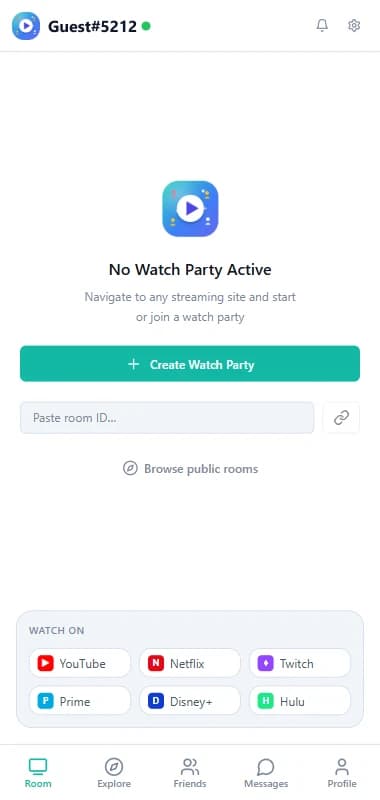
Room tab with the Create Watch Party button, room ID field and supported sites

Works on

  • YYouTube
  • NNetflix
  • TTwitch
  • PPrime Video
  • DDisney+
  • HHulu
  • + any site with a video

How to start

  1. 1

    Add to Chrome

    Install Watch Party from the Chrome Web Store and pin the icon to your toolbar.

  2. 2

    Open the video

    Go to the page you want to watch, on any site with a standard video player.

  3. 3

    Create Watch Party

    Click the icon to open the side panel, then press Create Watch Party.

  4. 4

    Share the room code

    Send the code to friends. When they're in, press play and everyone follows.

For the host

  1. Open the video you want to watch.
  2. Click the Watch Party icon in your Chrome toolbar. The side panel opens on the right, with five tabs: Room, Explore, Friends, Messages and Profile.
  3. On the Room tab, press Create Watch Party.
  4. Share the room code with your friends: paste it in your group chat or message.
  5. When everyone's in, press play. Pausing, skipping and rewinding happen for the whole room.
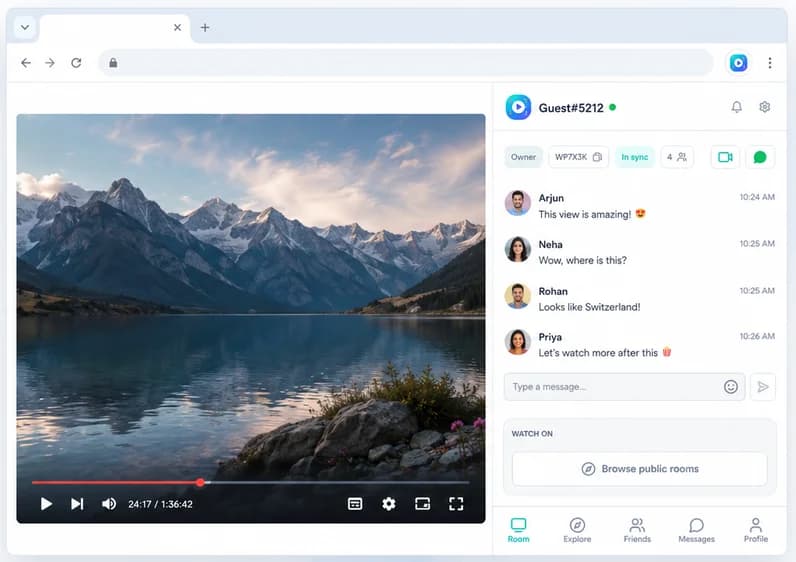
Watch Party side panel open next to a video, with the room chat and in-sync status
A party in progress: the video on the left, the room's chat and status in the side panel

For guests

  1. Add Watch Party to Chrome (free, no account needed).
  2. Click the icon to open the side panel.
  3. Paste the room code into Paste room ID and join. You'll land on the same video, in sync with the host.

Make sure you can play the video yourself first: if it's on a subscription service, you need your own account for it.

Add to Chrome, it's free

While you watch

  • Video and voice calls: start a call from the panel to see and hear each other.
  • Chat and reactions: comment without talking over the film, react to the big moments.
  • Everyone stays in step: joining late lands you on the same video and time.

No group tonight?

Open the Explore tab or press Browse public rooms to find a public watch party and join it. You can also make your own room public so others can find it, or keep it invite-only.

Something not lining up? Most issues are fixed in a minute: see watch party not syncing. Planning a bigger night? Read the watch party guide.

Frequently asked questions

What do I need for a watch party?

Desktop Chrome, the free Watch Party extension, and access to the video for everyone. On subscription services, each person uses their own account.

How do my friends join?

They add Watch Party to Chrome, open the side panel, and paste your room code into Paste room ID on the Room tab. They land on the same video, in sync.

Do guests need an account?

No. Anyone can host or join as a guest. Signing in with Google adds friends, direct messages and settings that follow you across devices.

Who controls the video?

When the host plays, pauses or skips, it happens for everyone in the room.

Can I host a watch party for free?

Yes. Hosting, syncing, chat, reactions and group video calls are free.

Press play once. Everyone watches together.

Synced playback, live chat and video calls, free in Chrome.

Add to Chrome, it's free